Project 2.2.1: Pushbutton And RGB Control
| Description | In this project, you will learn how to use a push button to control an RGB LED with an Arduino Uno. Each press of the button changes the LED to different colors, demonstrating how input devices can control multiple outputs. |
|---|---|
| Use case | This project can be used in a decorative lighting system where a push button allows users to cycle through different RGB colors. For example, in a bedroom or event setup, pressing the button can change the lighting color to create different moods and atmospheres. |
Components (Things You will need)
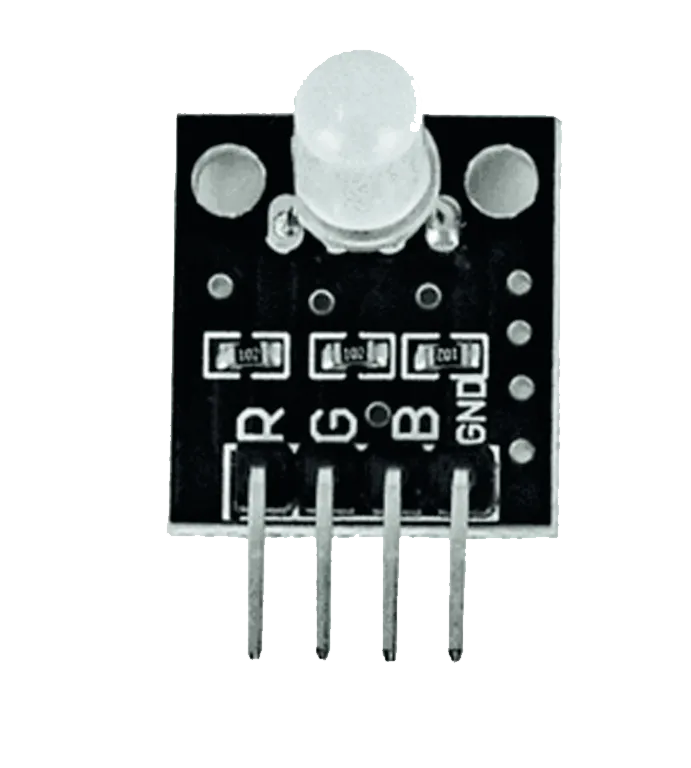 |
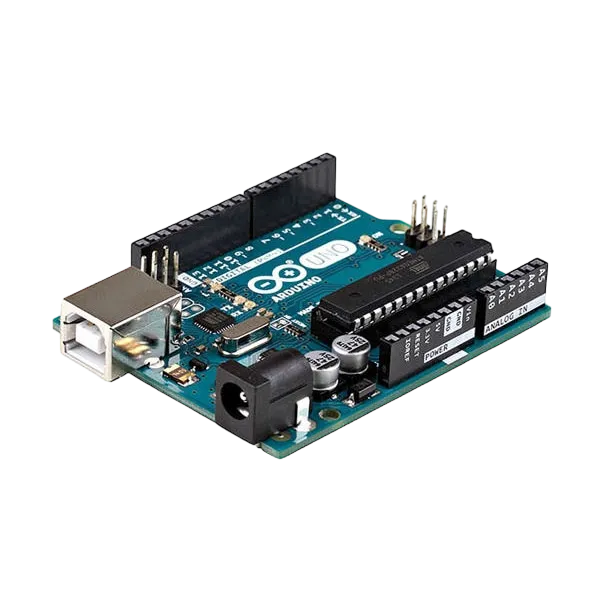 |
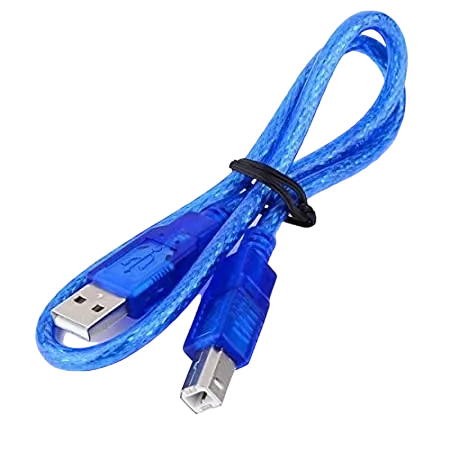 |
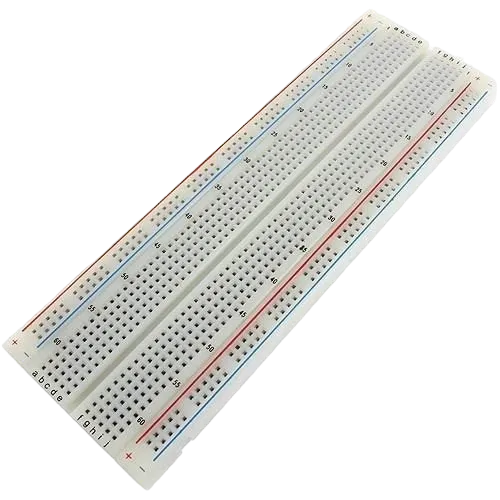 |
 |
 |
|---|---|---|---|---|---|
Mounting the component on the breadboard
Things Needed:
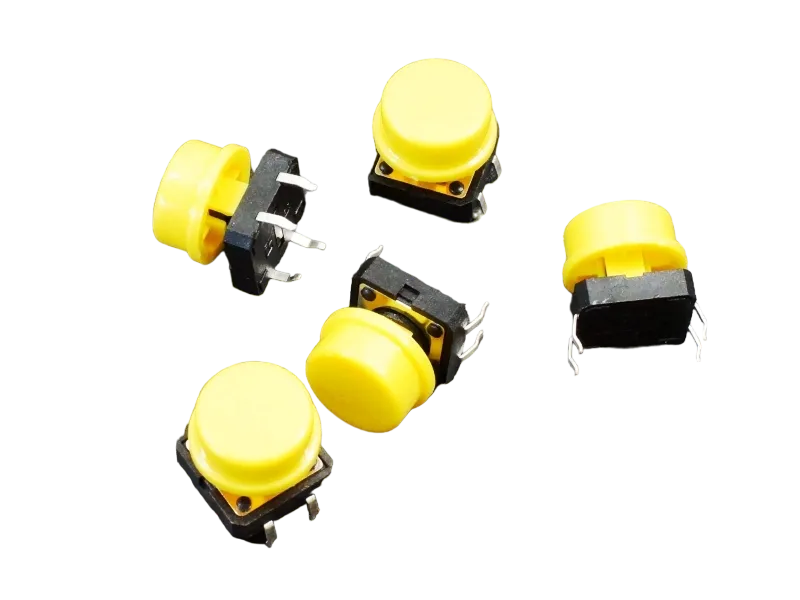
- Pushbutton = 1
- Breadboard =1
- RGB Module = 1
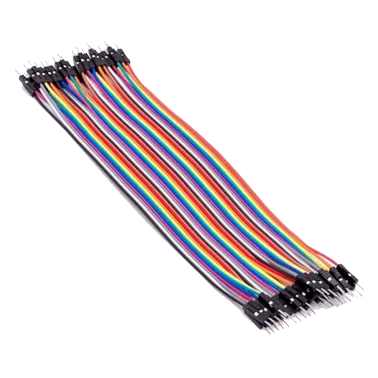
- Jumper wires
- Breadboard = 1
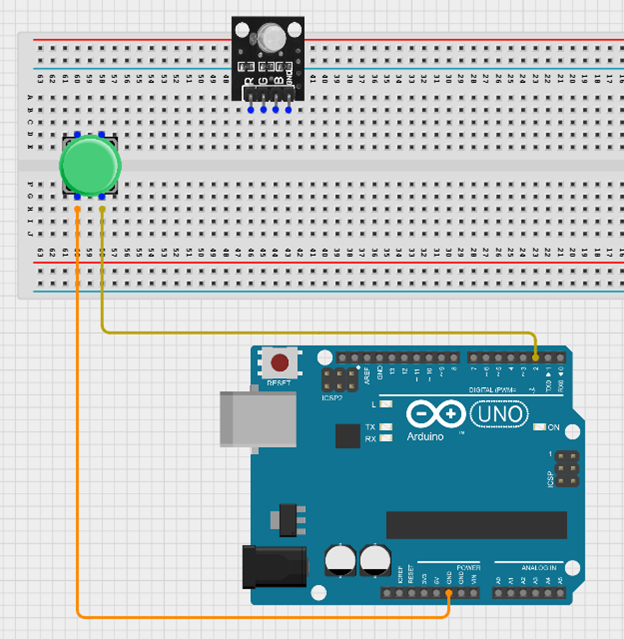
Step 1: Insert the push button into the breadboard by placing two pins on one side of the middle section and the other two pins on the opposite side. Then insert the RGB module into the breadboard, ensuring all four pins (Red, Green, Blue, and Negative) are properly placed and secured.
 .
.
Step 2: Connect the push button to the Arduino Uno by using a jumper wire from one pin of the push button to Digital Pin 2, and another jumper wire from the other pin of the push button to GND on the Arduino Uno.
 .
.
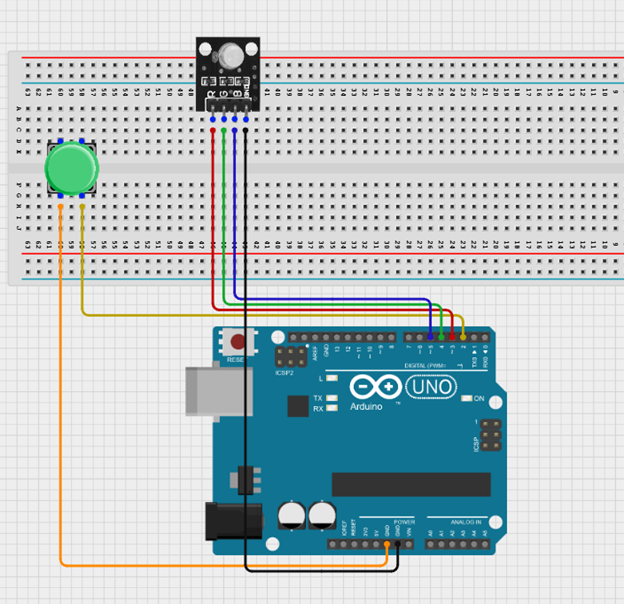
Step 3: Connect the RGB module to the Arduino Uno by linking the negative pin to GND using a black jumper wire, the Red pin to Digital Pin 3, the Green pin to Digital Pin 4, and the Blue pin to Digital Pin 5 using jumper wires.
Step 4: Connect the USB port of the Arduino cable to the USB port of your laptop and the other side to the Arduino Uno Board.
PROGRAMMING
Step 1: Open your Arduino IDE. See how to set up here: Getting Started.
Step 2: Type const int buttonPin = 2; as shown in the picture below.
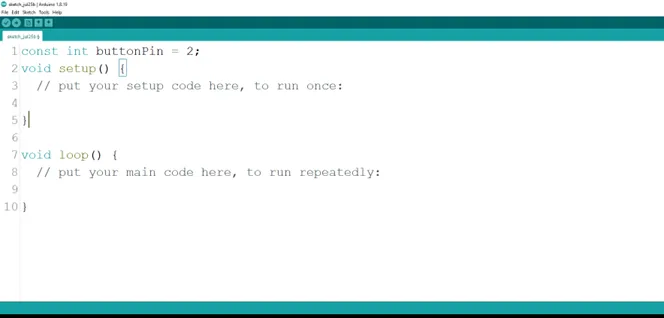 .
.
Step 3: Type int red = 3; as shown in the picture below.
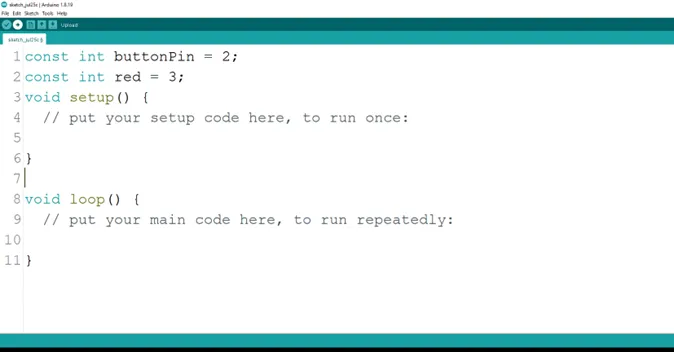 .
.
Step 4: Press ENTER to go to the next line, type int yellow = 4; to define the green pin as shown in the picture below.
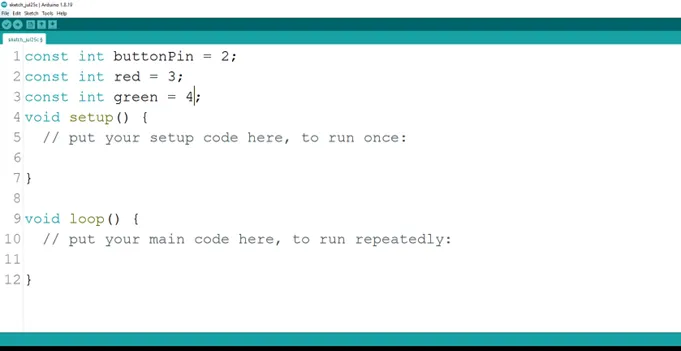 .
.
Step 5: Type int green = 5;to define the pin for the blue pin as shown in the picture below.
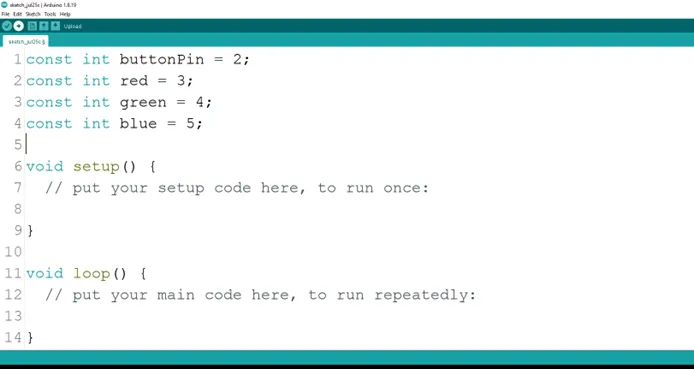 .
.
Step 6: Type int buttonState = 0; as shown in the picture below.
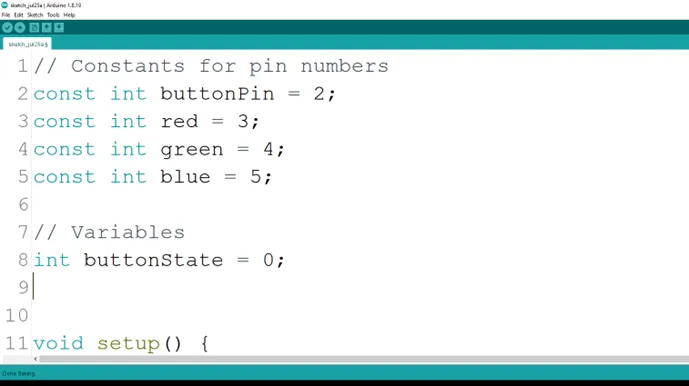 .
.
Step 7: Type int currentColor = 0;to declare the current color state as shown in the picture below.
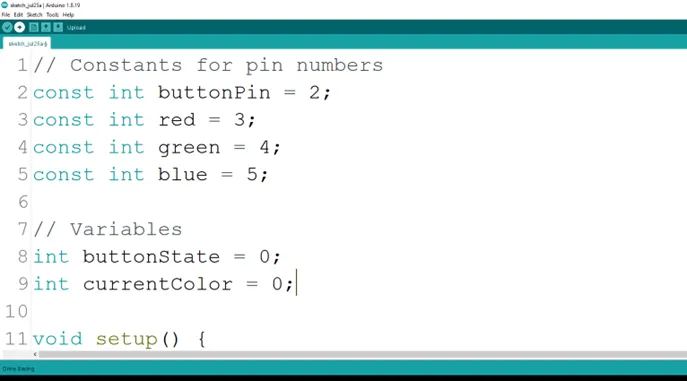 .
.
Step 8: Type Inside the curly brackets of the void setup () function, type pinMode (buttonPin, INPUT_PULLUP); to set the button pin as an input.
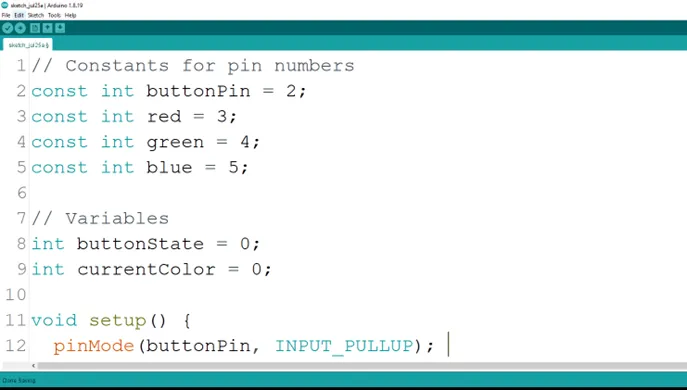 .
.
Step 9: After the (void setup ()) within the curly brackets type
pinMode (red, OUTPUT);
pinMode (green, OUTPUT);
pinMode (blue, OUTPUT); to set the RGB pins as an output.
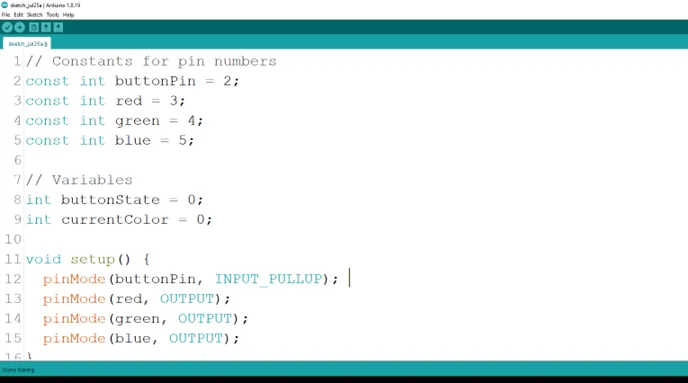 .
.
Step 10: Inside the curly brackets of the void loop (), which is where you put your code to run repeatedly. Type As shown in the picture below.
buttonState = digitalRead (buttonPin);
As shown in the picture below.
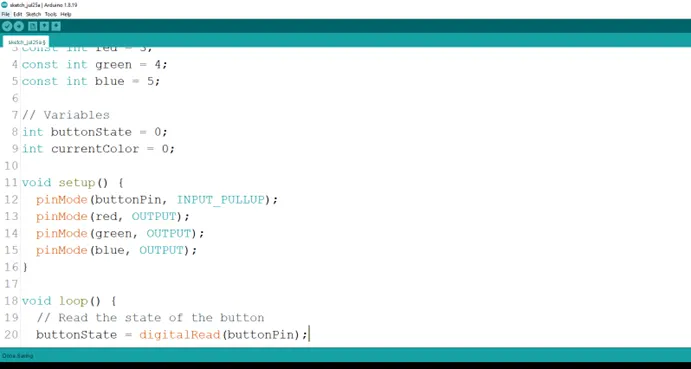 .
.
Step 11: Type
 If (buttonState = LOW);
   currentColor++;
As shown in the picture below.
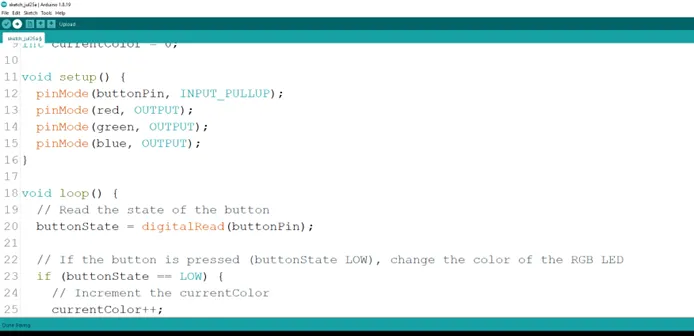 .
.
Step 12: Type
currentColor = currentColour % 4;
As shown in the picture below.
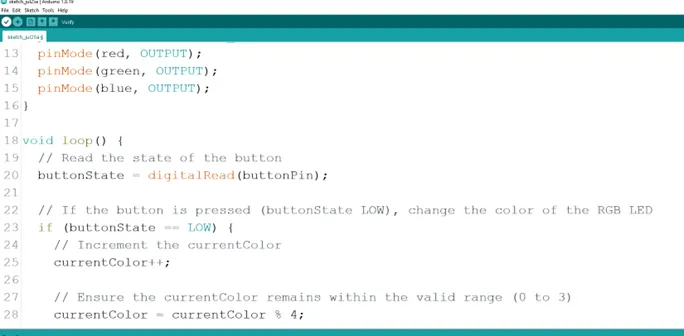 .
.
Step 13: Type
setColour (currentColor);
    delay (200);
As shown in the picture below.
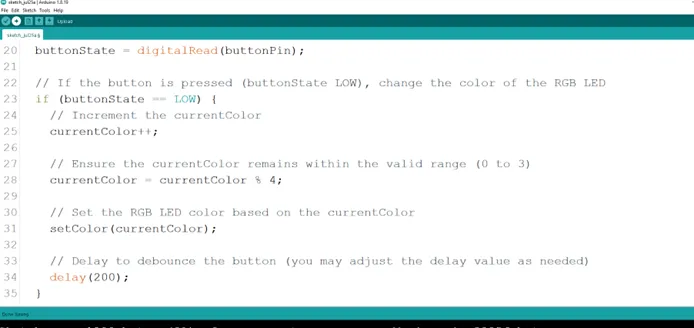 .
.
Step 14: Type a function ``` cpp void setColor (int color){
to set the RGB LED colors. As shown in the picture below.
.
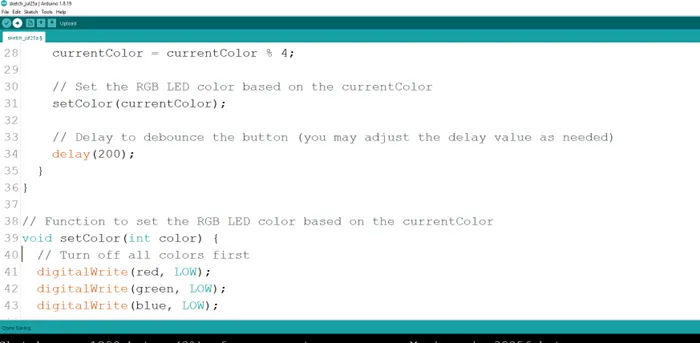
**Step 15:** Type Function
``` cpp
digitalWrite (red, LOW);
digitalWrite (green, LOW);
digitalWrite (blue, LOW);
}
to turn off all colors first. As shown in the picture below.
 .
.
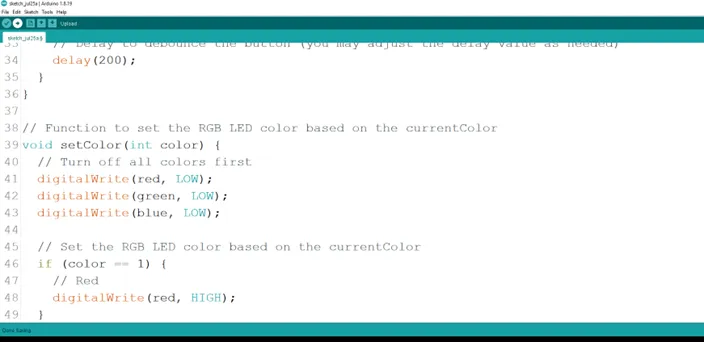
Step 16: Type the conditional statement to set the RGB color based on the current color.
if (color == 1) {
    digitalWrite (red, HIGH);
}
As shown in the picture below.
 .
.
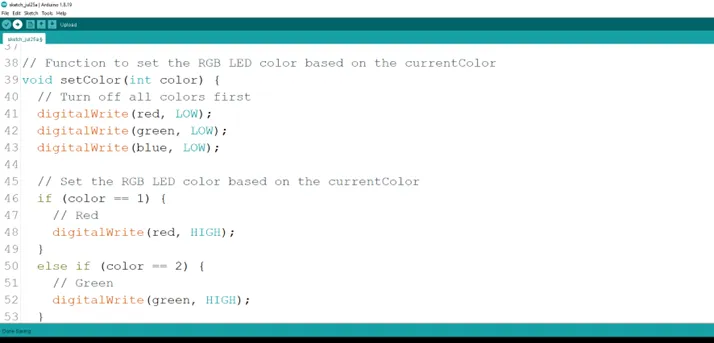
Step 17: Type the alternative for the conditional statement to set the RGB color based on the current color.
else if (color == 2) {
    digitalWrite (green, HIGH);
}
As shown in the picture below.
 .
.
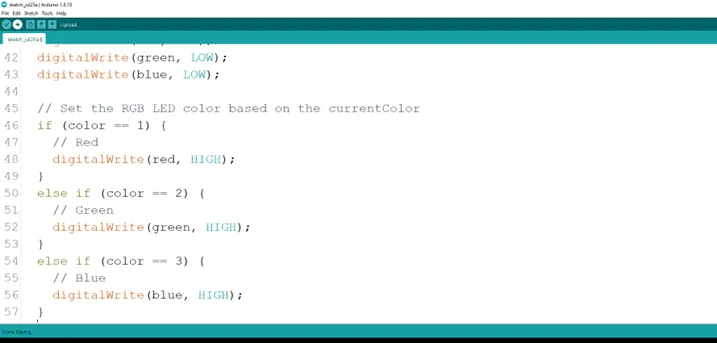
Step 18: Type the alternative for the conditional statement to set the RGB color based on the current color.
else if (color == 3) {
    digitalWrite (blue, HIGH);
}
As shown in the picture below.
 .
.
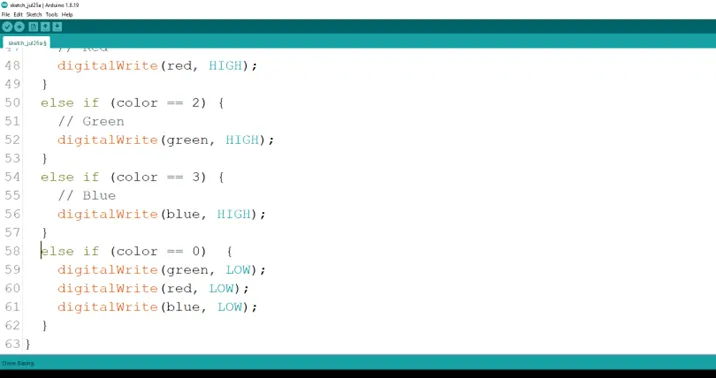
Step 19: Type the alternative for the conditional statement to set the RGB color based on the current color.
else if (color == 0) {
    digitalWrite (red, LOW);
     digitalWrite (green, LOW);
  digitalWrite (blue, LOW);
}
As shown in the picture below.
 .
.
Uploading the code
Step 20: Save your code. See the Getting Started section
Step 21: Select the arduino board and port See the Getting Started section:Selecting Arduino Board Type and Uploading your code.
Step 22: Upload your code. See the Getting Started section:Selecting Arduino Board Type and Uploading your code
OBSERVATION
Press the pushbutton several times to see the RGB display different LED colors.
CONCLUSION
This project demonstrated how a push button can be used to control an RGB LED with an Arduino Uno. Each press of the button successfully changed the LED color, showing how input devices can control multiple outputs in a simple electronic system. It helped in understanding circuit connections, programming logic, and real-life applications of interactive lighting systems.