Project 2.1.1:Push Button with Buzzer
| Description | This project demonstrates how to create a simple circuit using a push button and a buzzer. When the push button is pressed, the buzzer produces a sound, making the project useful for alarm systems, doorbells, and alert notifications. |
|---|---|
| Use case | This project can be used in a quiz competition system where contestants press the push button to activate the buzzer, indicating who answered first. |
Components (Things You will need)
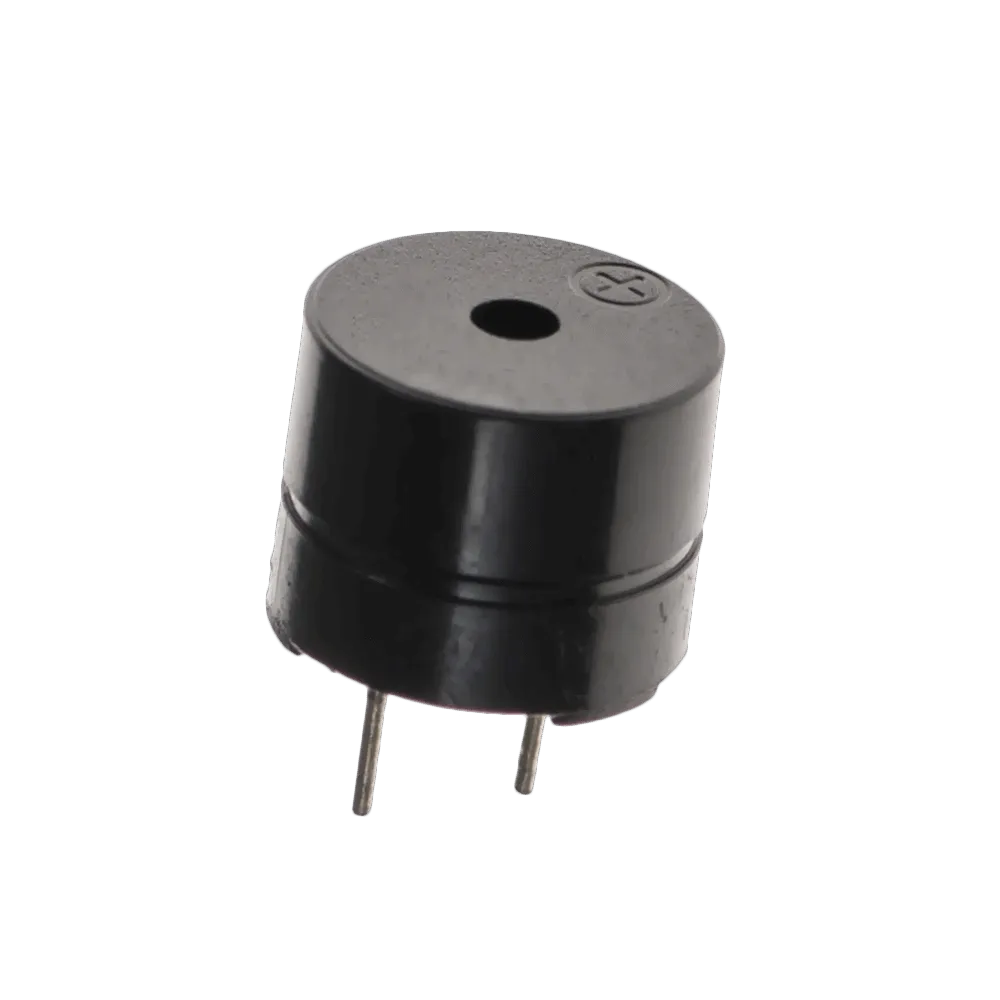 |
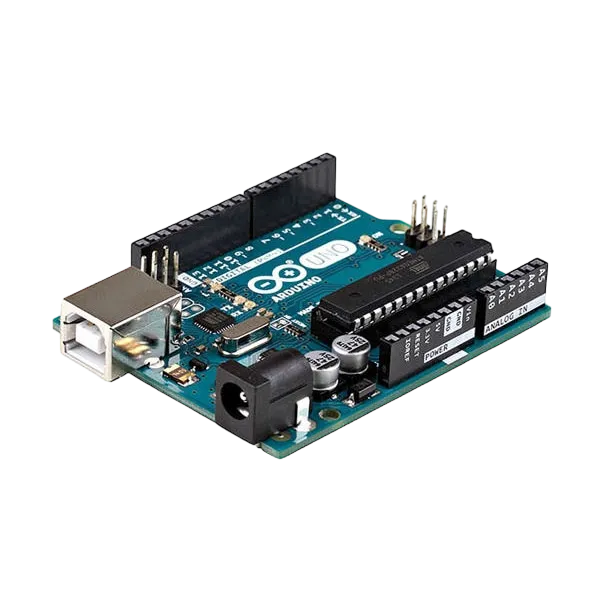 |
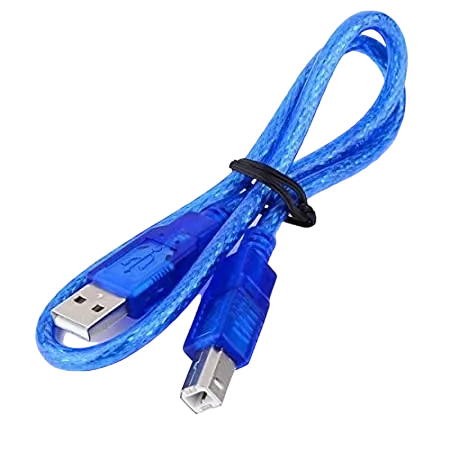 |
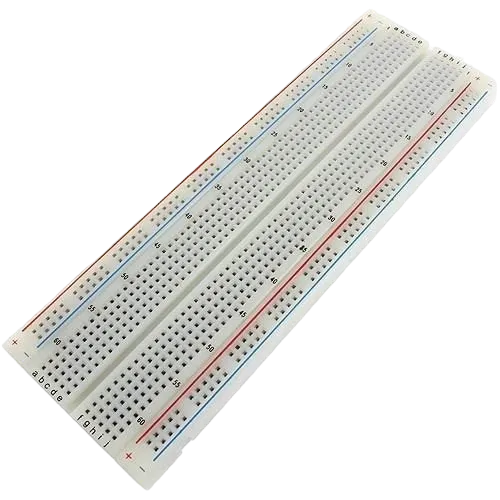 |
 |
 |
|---|---|---|---|---|---|
Building the circuit
Things Needed:
- Arduino Uno = 1
- Arduino USB cable = 1
- Buzzer = 1
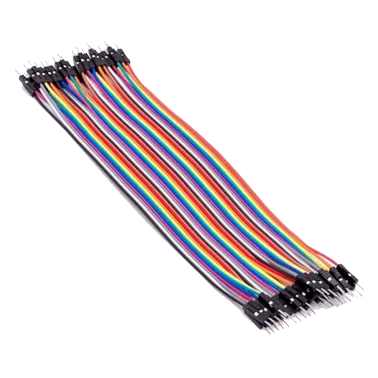
- Jumper wires
- Breadboard = 1
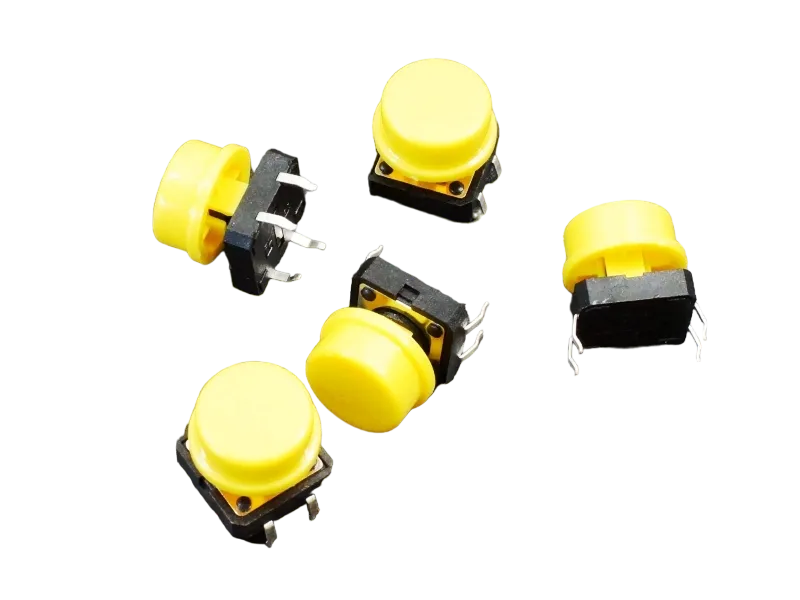
- Push button = 1
Mounting the component on the breadboard
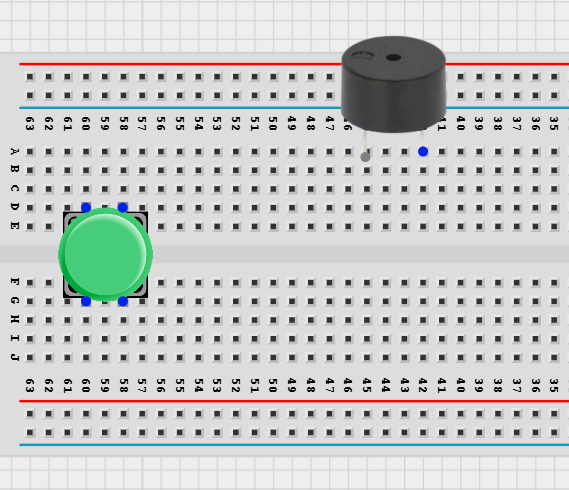
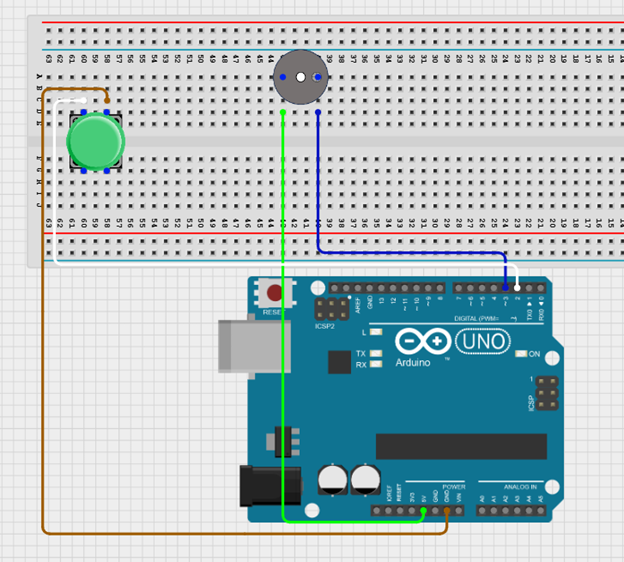
Step 1: Insert the push button by placing two pins on the breadboard as shown. Then insert the buzzer into row A on the breadboard, ensuring the longer pin (positive) is correctly aligned.
 .
.
Note:Take note of where each of the pins are placed on the bread board
WIRING THE CIRCUIT
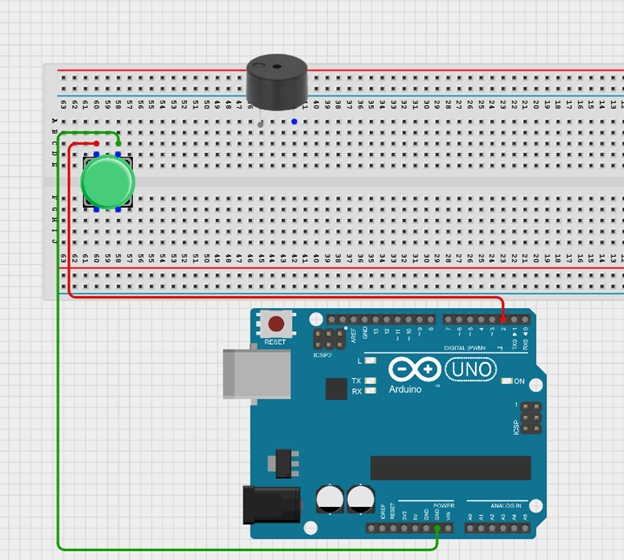
Step 2: Connect red jumper wire from the pin on row d of the push button to Digital Pin 2 on the Arduino Uno. Then connect the other pin on row d to GND on the Arduino Uno using the white jumper wire.
 .
.
Step 3: Connect the positive pin of the buzzer to Digital Pin 3 on the Arduino Uno using the blue jumper wire. Then connect the negative pin of the buzzer to GND on the Arduino Uno using the green jumper wire.
 .
.
PROGRAMMING
Step 1: Open your Arduino IDE. See how to set up here: Getting Started.
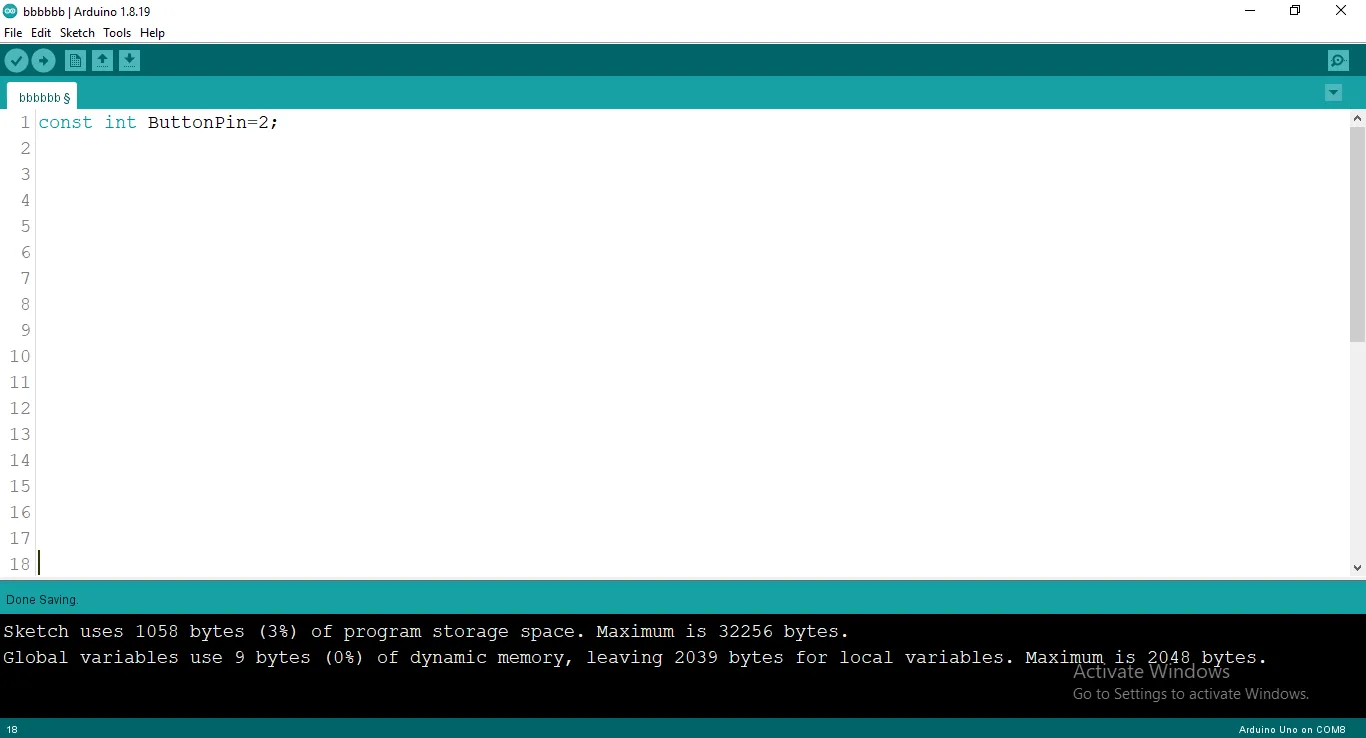
Step 2: Type the following codes before the void setup() function.
const int ButtonPin= 2;
 .
.
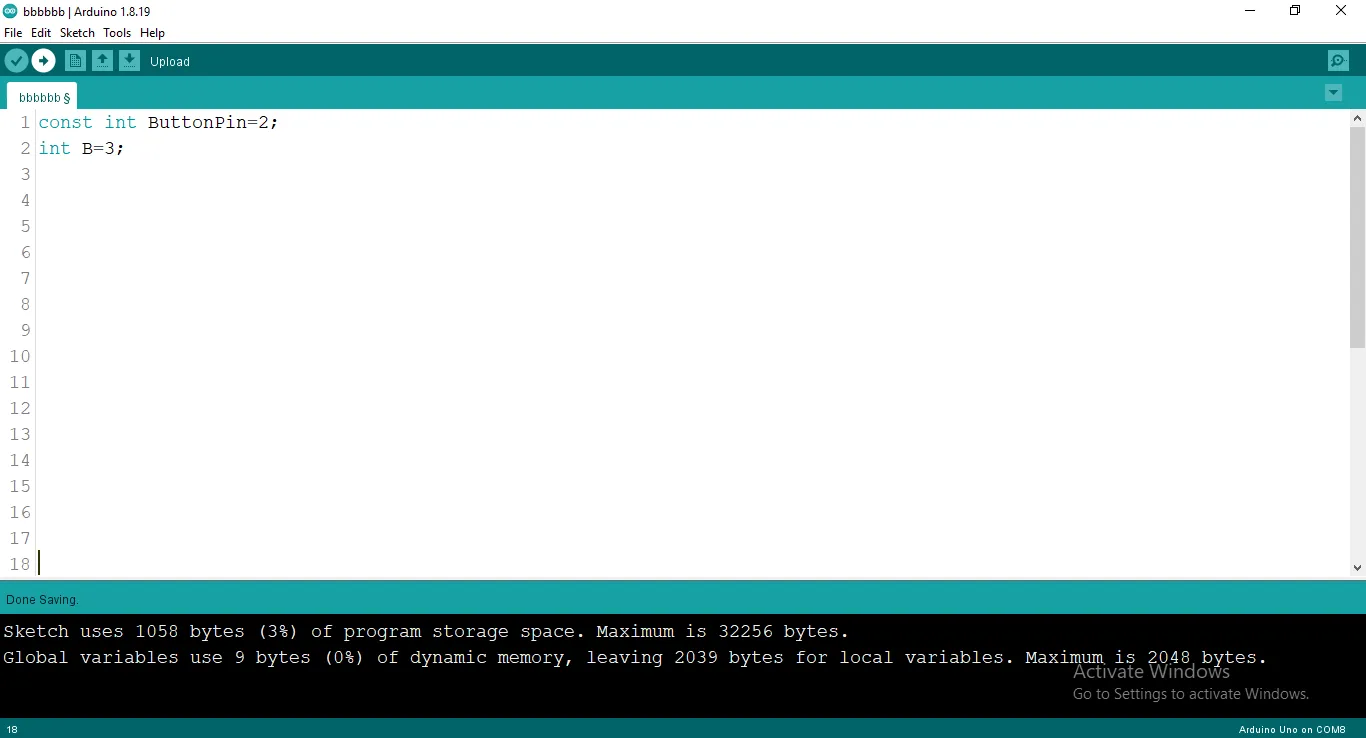
Step 3: typeint B = 3;as shown in the picture below.
 .
.
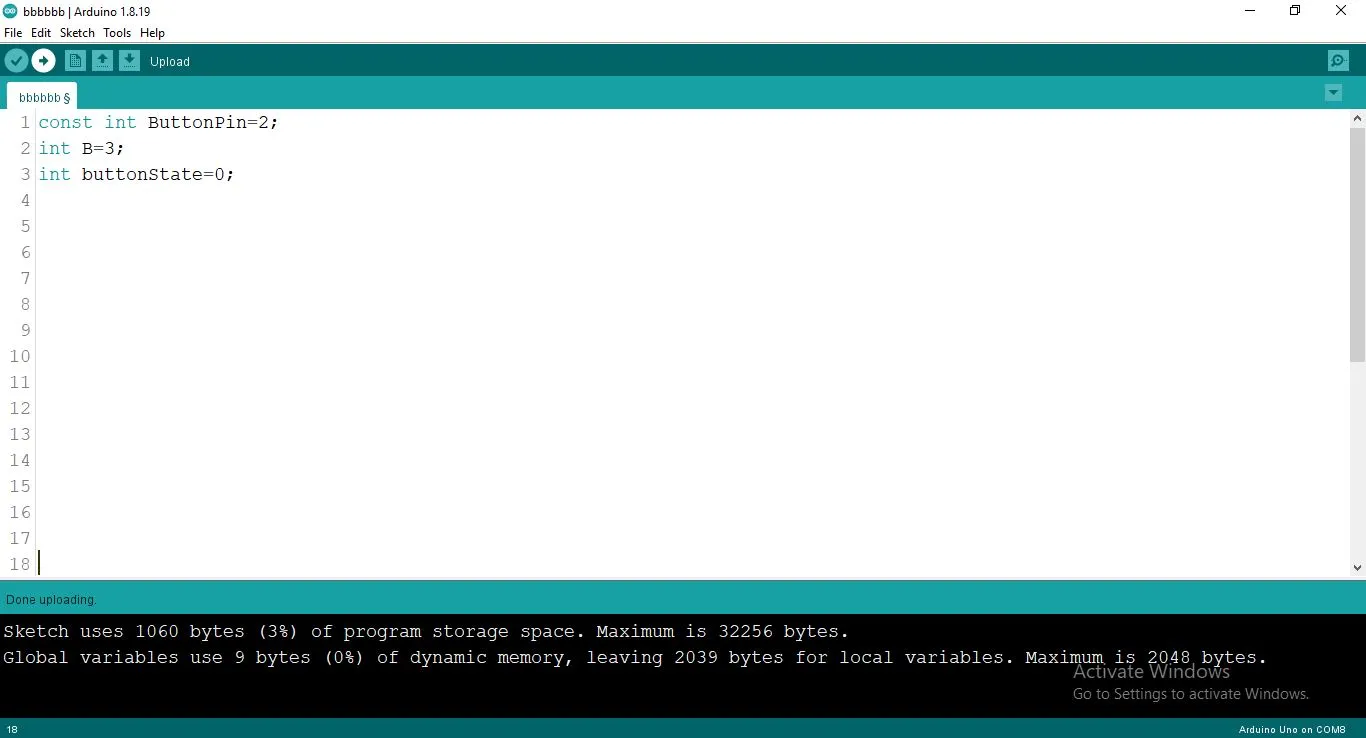
Step 4: Type int buttonState= 0; as shown in the picture below.
 .
.
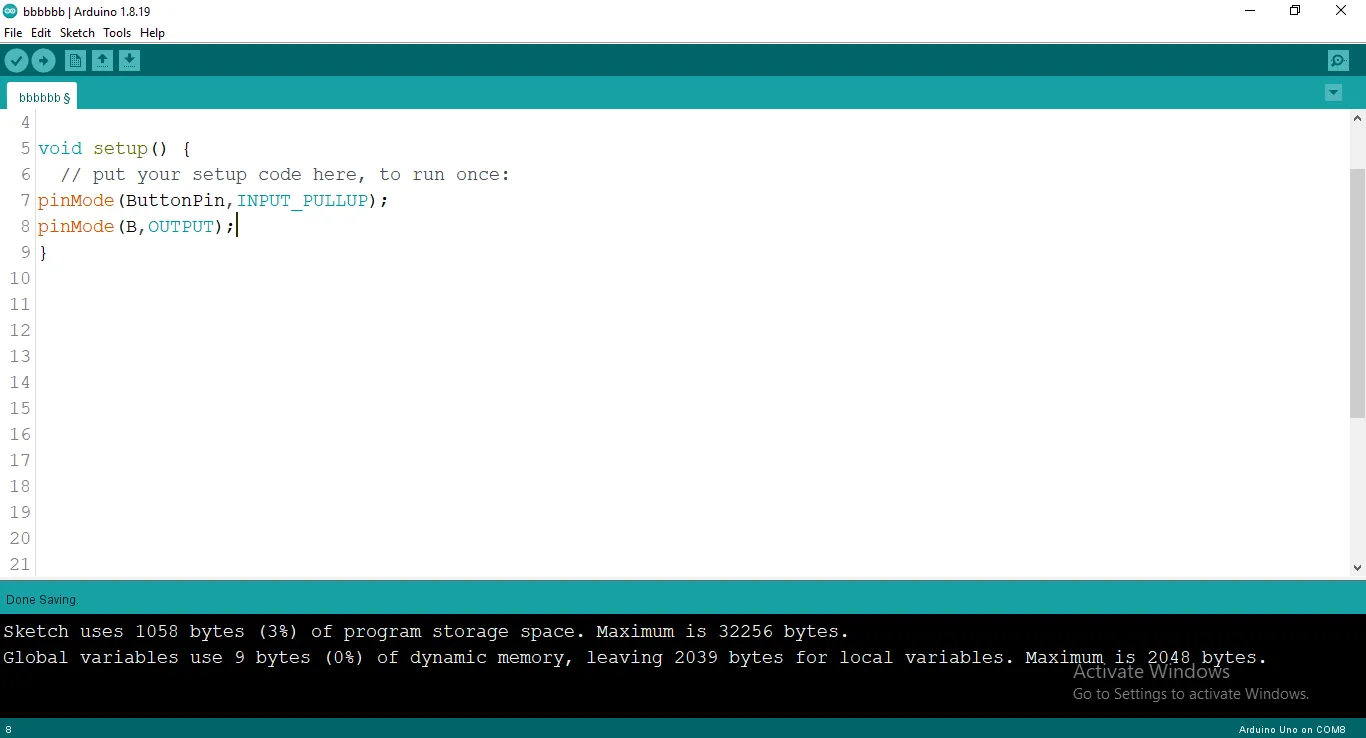
Step 5: After the void setup () within the curly brackets type the following codes.
pinMode (ButtonPin, INTPUT_PULLUP);
pinMode (B, OUTPUT);
 .
.
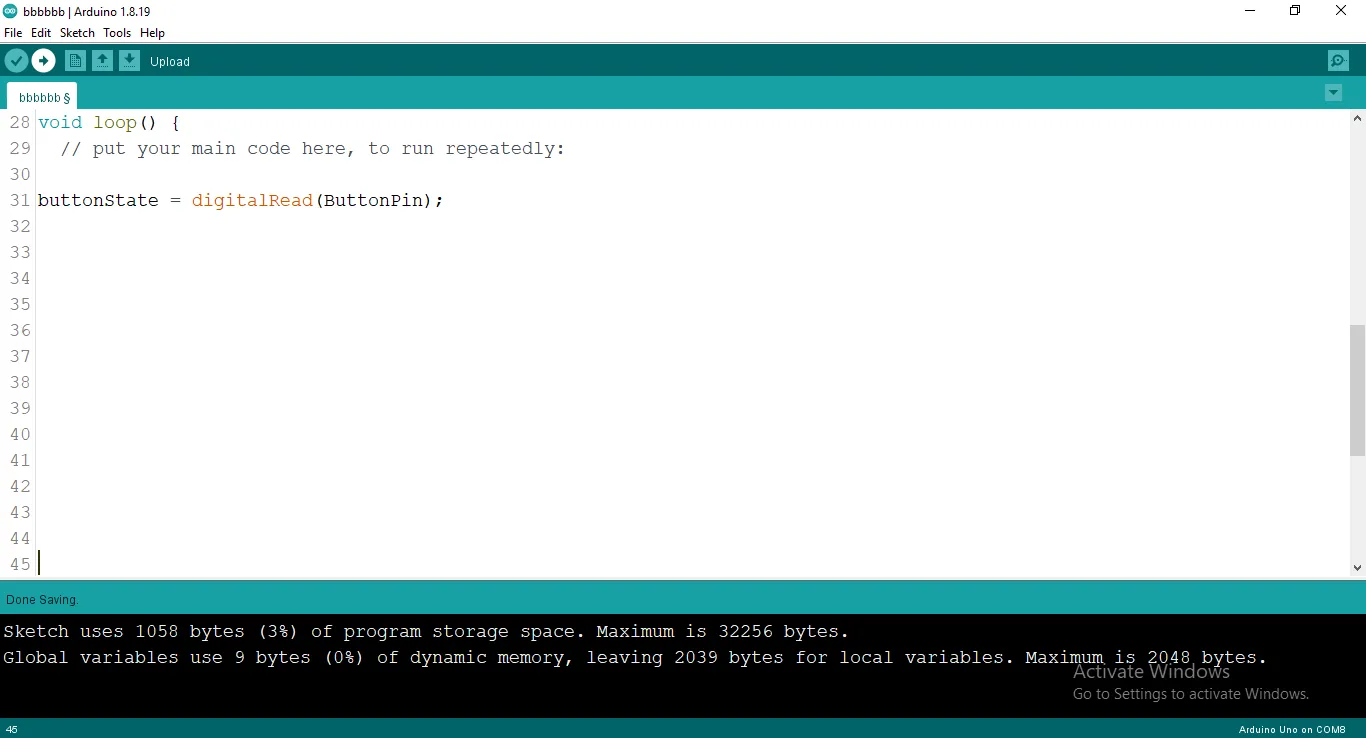
Step 6: : After the (void loop ()) within the curly brackets type
buttonState = digitalRead(ButtonPin);
 .
.
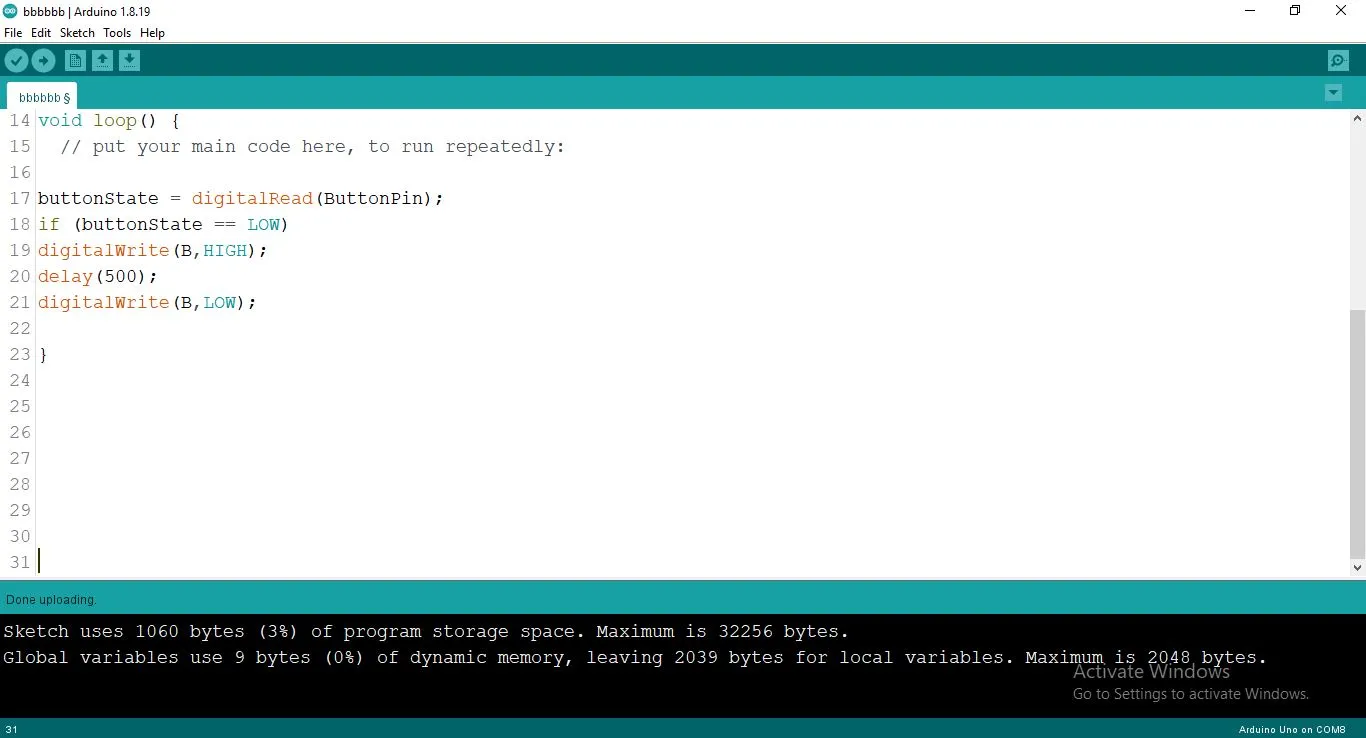
Step 7: :Now let type
 if (buttonState == LOW) {
digitalWrite (B, HIGH);
delay (500);
digitalWrite (B, LOW);
}
 .
.
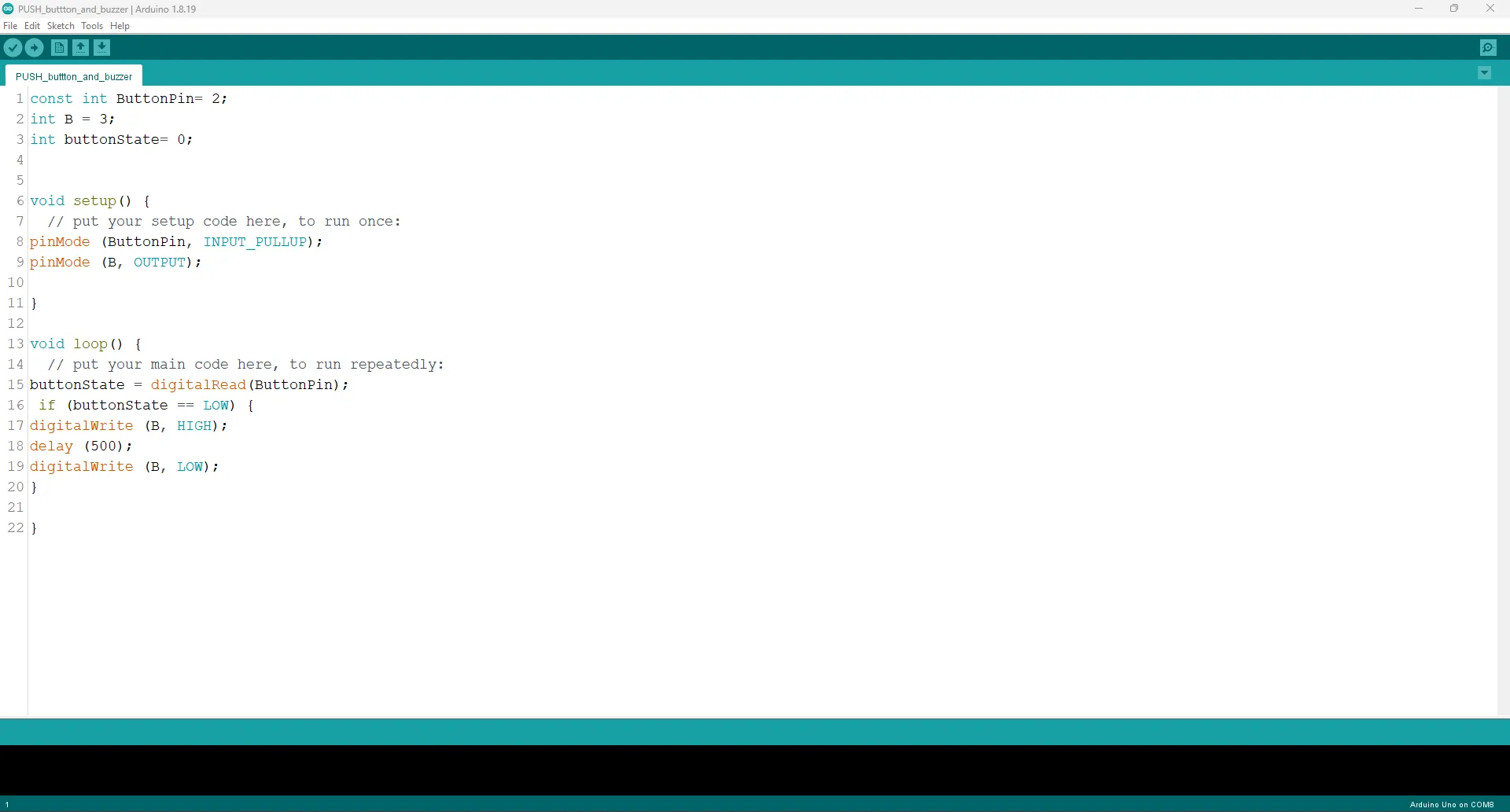
Step 8: After all you are expected to see this code.
 .
.
Uploading the code
Step 1: Save your code. See the Getting Started section
Step 2: Select the arduino board and port See the Getting Started section:Selecting Arduino Board Type and Uploading your code.
Step 3: Upload your code. See the Getting Started section:Selecting Arduino Board Type and Uploading your code
CONCLUSION
If any issues arise during the upload, recheck the wiring and code for errors. Upon successful testing, this project demonstrates how to use a push button to control a buzzer, laying the foundation for interactive systems.